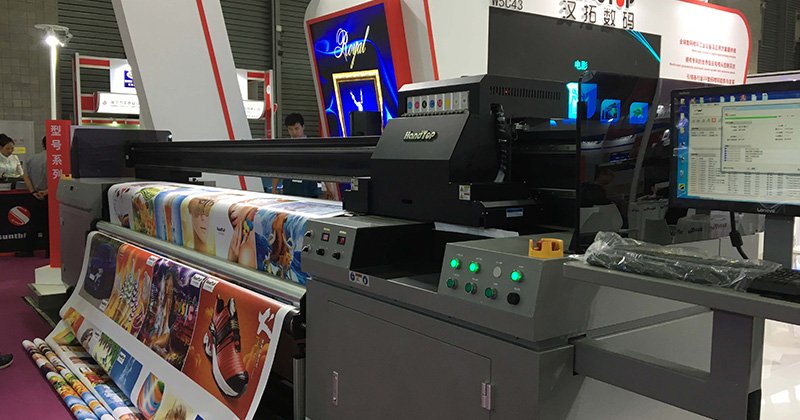
Before servicing your printer, you need to know a little about printer problems. After the printer has a problem, the first thing to do is to use the printer’s self-checking system to detect it. It can be judged by the indicator light or the sound of the buzzer that comes with the printer. The indicator light can indicate the most basic faults, including out-of-paper, ink shortage, no power supply, etc. Secondly, line observation can be carried out, starting from the detection of printer cables (including the detection of ports, channels, and printing lines), and then analyzing the internal structure of the printer (including paper trays, paper inlets, print heads, etc.) to see if the components are working correctly. Lock relevant components for different fault conditions, and then determine the problematic components. Again, you can use the test method to print a test page or partially test the internal components of the printer to see the cause of the failure. Of course, another fault of the printer is a software fault, and similar faults need to be solved by upgrading the driver or visiting its official website.
1. The Handwriting is Not Clear
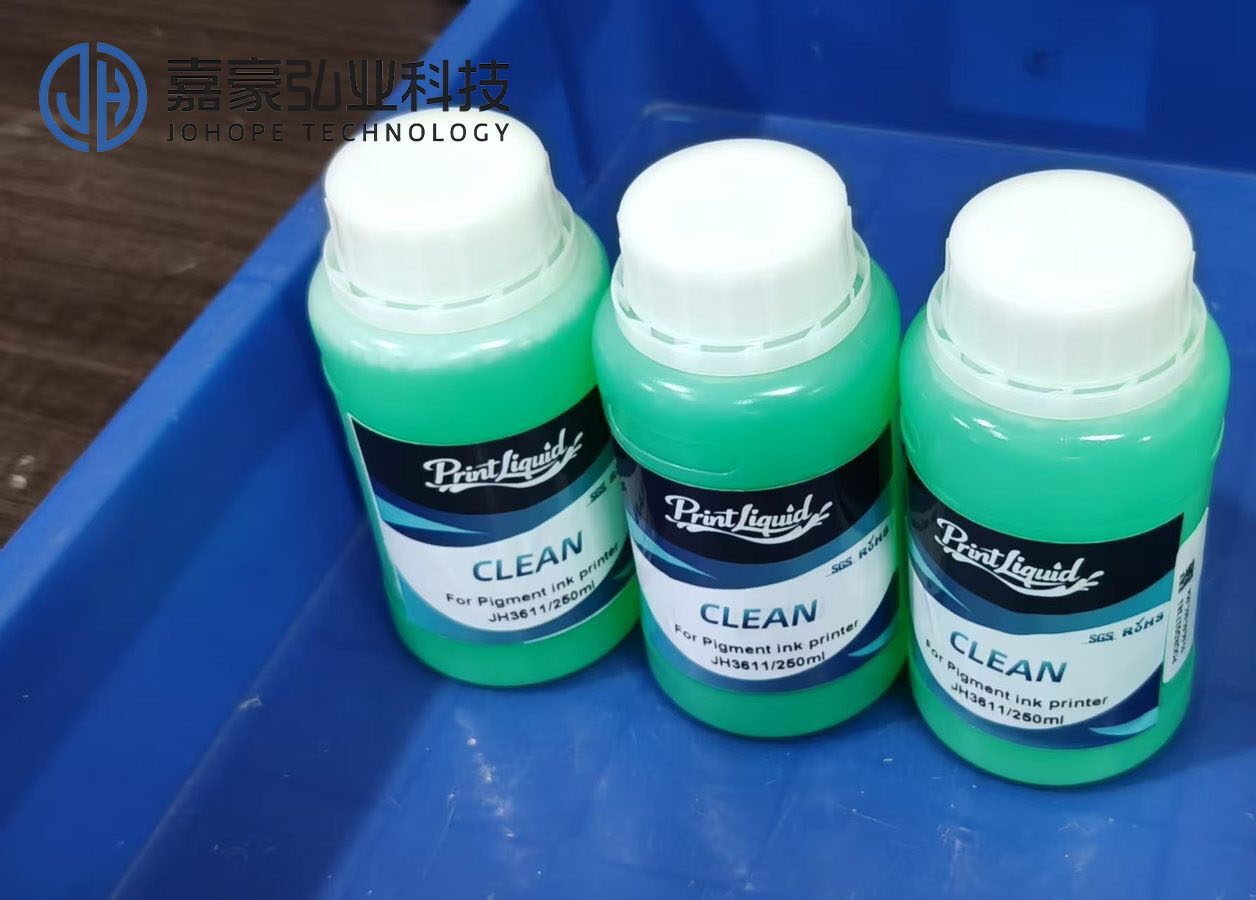
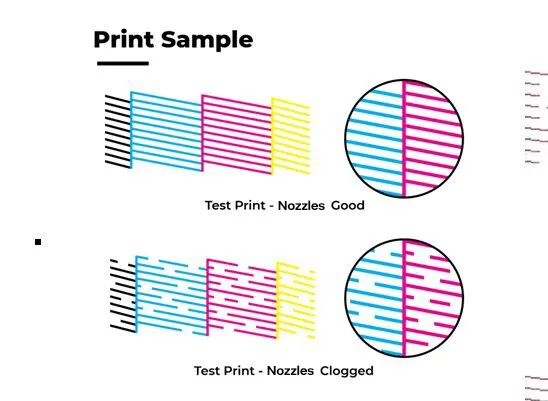
For inkjet printers, there may be two reasons, the ink cartridge is out of ink, the printer has not been used for a long time, or the nozzles are clogged due to direct sunlight. The solution is to replace the ink cartridge or refill the ink. If the ink cartridge is not used up, it can be concluded that the nozzle is blocked: remove the ink cartridge (for printers whose ink cartridge nozzle is not integrated, the nozzle needs to be removed), soak the nozzle in warm water for a while. Be careful not to immerse the circuit board part in water, otherwise, the consequences will be disastrous.
2. Unable to Print Large Files
This situation occurs more often in laser printers. It may be normal when printing small files, but it will crash when printing large files. This problem is mainly a software failure. You can check the remaining space on the hard disk and delete some Useless files, or query the number of printer memory, and whether it can be expanded.3. Incomplete Printing
If you encounter such a problem, it can be said that it is caused by a software failure, you can change the printing interface settings in Windows95/98, select "Start → Settings → Control Panel → System → Device Management → Port → Printer Port → Driver → Change Driver → Show All Devices", change "ECP Print Port" to "Printer Port" and confirm.4. The Print Effect Is Different from the Preview
Usually, this happens under a text editor, such as Word or WPS2000, etc., the format is neat in the preview, but when you print it out, you find that some fonts are overlapping. This situation is generally due to improper settings during editing. The solution is to change the paper size, paper type, number of words per line, etc. in the "Page Properties" of the file, which can generally be solved.5. The printer Does Not Respond after Selecting Print
When this happens, the system usually prompts "Please check whether the printer is online and whether the cable connection is normal". The general reasons may be that the power cord of the printer is not plugged in properly; the printer cable is not properly connected; the contact is poor; the parallel port of the computer is damaged, etc.6. The Printer Outputs Blank Paper
For dot matrix printers, most of the reasons for the blanking of the printing paper are due to the ink drying of the ribbon, the breaking of the ribbon, the damage to the print head, etc. The ribbon should be replaced or the print head should be repaired in time; It is because the nozzle is blocked, the ink cartridge has no ink, etc., the nozzle should be cleaned or the ink cartridge should be replaced; for laser printers, the cause of this type of failure may be that the developing roller does not absorb toner (the DC bias of the developing roller is not added), and also It may be that the photosensitive drum is not grounded so that the negative charge cannot be released to the ground, and the laser beam cannot work on the photosensitive drum.In addition, the photosensitive drum of the laser printer does not rotate, so no image is generated and transferred to the paper. Disconnect the power of the printer, take out the toner cartridge, open the notch on the box cover, make a mark on the non-photosensitive part of the photosensitive drum, and then reinstall it in the printer. Start-up and run for a while, and then take out the check mark to see if it moves, you can judge whether the photosensitive drum is working normally. Blank pages can also be printed if the toner is not supplied properly or the laser beam is blocked. Therefore, it should be checked whether the toner is used up, whether the ink cartridge is correctly installed in the machine, whether the sealing tape has been removed, or whether there is any obstruction on the laser irradiation path. It should be noted that the power must be turned off during inspection, because the laser beam may damage the operator’s eyes.